
Close Menu
H24 NewsH24 News

    Subscribe to Updates

    Get the latest creative news from FooBar about art, design and business.

    What's Hot

    The $25 Dinner: Thanksgiving Edition

    November 11, 2026

    See Fall Out Boy Play a Los Angeles Mall Ahead of Stadium Tour

    November 11, 2026

    ‘It’s just too expensive’: Housing and wages at the heart of Spain’s strike | News

    November 11, 2026
    Facebook X (Twitter) Instagram
    Trending
    • The $25 Dinner: Thanksgiving Edition
    • See Fall Out Boy Play a Los Angeles Mall Ahead of Stadium Tour
    • ‘It’s just too expensive’: Housing and wages at the heart of Spain’s strike | News
    • Trump wanted little Kei trucks for America, Toyota makes it happen
    • Elizabeth Warren on Democrats Pushing for Reform: ‘Dare Him to Veto’
    • Finland Allows Tesla FSD, So Long As It’s Not Called That
    • Some 300 Italian schools evacuated due to bomb threats
    • Acer’s Popular Gaming Handheld Couldn’t Go Two Weeks Without a Price Hike
    H24 NewsH24 News
    Subscribe
    • Home
    • Top News
    • Technology
    • Entertainment
    • Lifestyle
    • Home & Living
    • Auto
    H24 NewsH24 News
    Home»Technology»Here’s What The Red Dot On Your Apple Watch Means And How To Clear It
    Technology

    Here’s What The Red Dot On Your Apple Watch Means And How To Clear It

    h24By h24November 10, 2026No Comments3 Mins Read
    Facebook Twitter Pinterest LinkedIn Tumblr Email
    Here’s What The Red Dot On Your Apple Watch Means And How To Clear It
    Share
    Facebook Twitter LinkedIn Pinterest Email

    It’s all about notifications.
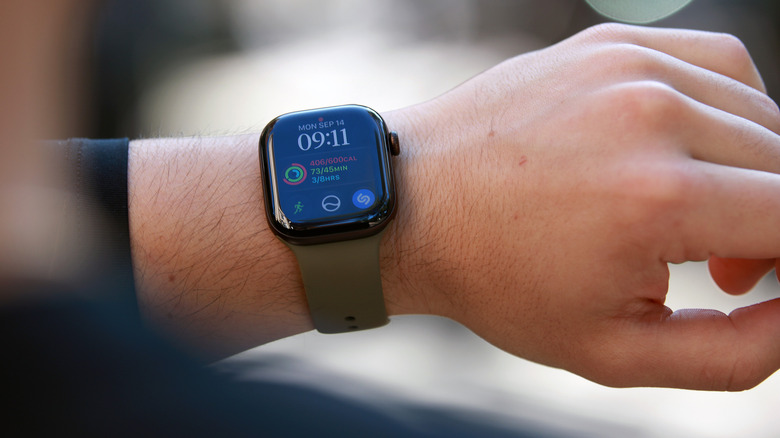

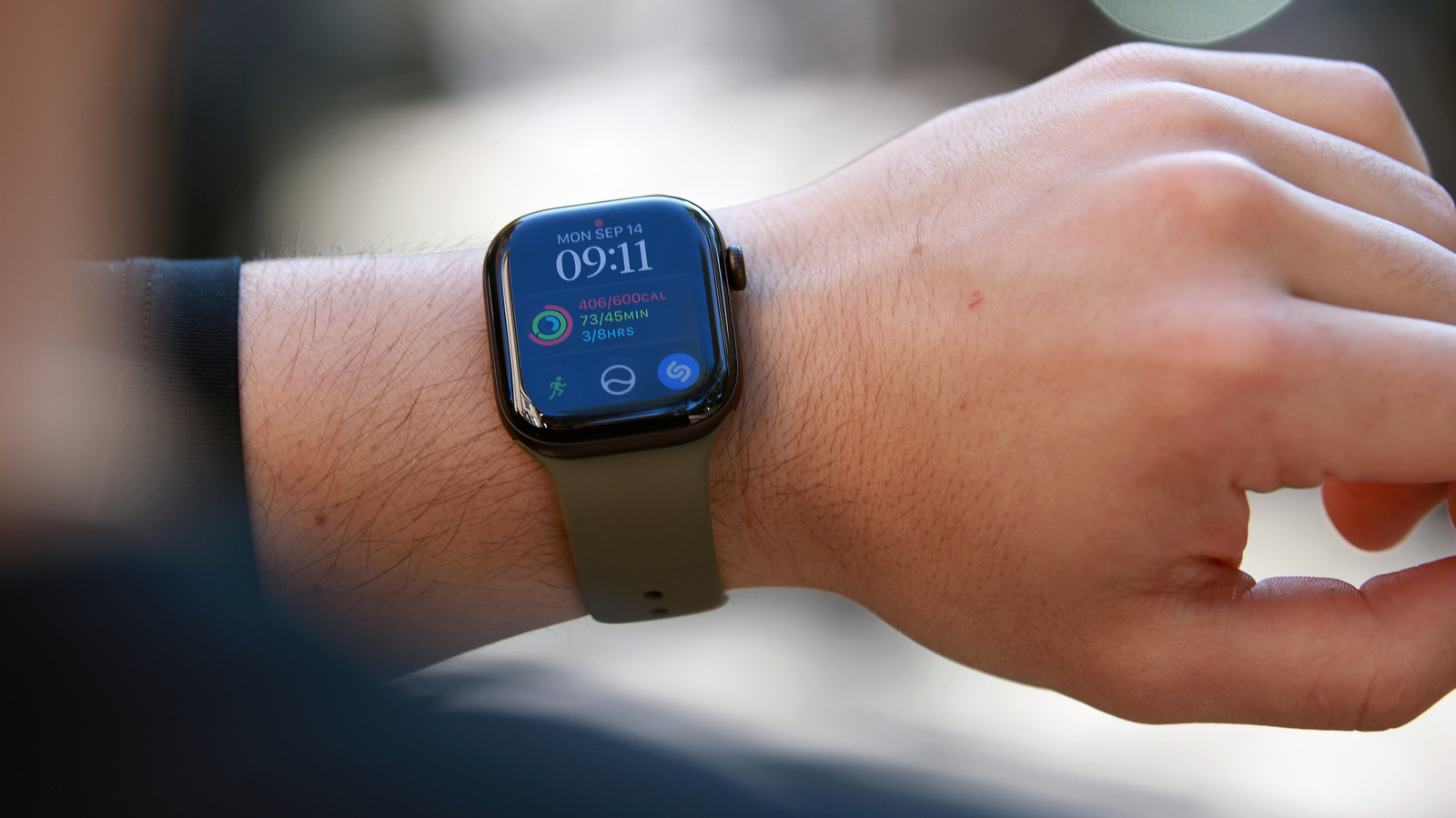
    A person holding up an arm with an Apple Watch.
    Cherlynn Low for Engadget

    If you look at your Apple Watch and see a small red dot at the top of its screen, it’s telling you one thing: you have notifications waiting for you. Apple sends notifications to your iPhone if it’s unlocked, but if it is locked and your Watch is the one that’s unlocked, it will send notifications to the wearable instead. That doesn’t mean you’ll always catch every single one of them as they appear, however. The red dot at the top shows up if you have notifications that you’ve yet to read and dismiss. 

    How to view and dismiss your notifications

    To view them, simply press and hold your watch face to open the Notification Center. Once it shows up, swipe down on your screen to scroll or turn the Digital Crown. You can read notifications from there by tapping on them or delete them by swiping left and then tapping the X button. If you want to quickly delete all your notifications, go to the Notification Center, swipe down or turn the Digital Crown until you get to the top and see the Clear All button. Tap it to remove all unread notifications from your Watch. 

    How to switch off notifications or mute them

    In case you’d rather not see the indicator altogether — maybe seeing it gives you anxiety or maybe you don’t want to be disturbed — just open the Apple Watch app on your iPhone, tap Notifications and switch off Notifications Indicator. 

    You can also mute or switch off a certain app’s notification’s on your Watch instead. Swipe left on a specific notification and instead of dismissing it, tap on the ellipsis icon and then choose from among the options. You can mute notifications from that app for an hour or turn them off completely. You can also choose Turn off Time Sensitive if you want that app to deliver notifications immediately, even if you had switched on Focus mode, which is supposed to delay most notifications when it is on. 

    Most apps can only mirror your iPhone, so their notification settings are identical for both your handheld and your watch. In the Watch app under Notifications, you can go to Mirror iPhone Alerts and toggle the setting off for any of the apps listed in the section to stop getting alerts from them on your Watch. However, some apps allow you to set custom alerts. Those apps show the option “Custom” when you tap on them in the Watch app. On each individual app’s settings page, you can choose Notifications Off or Send to Notification Center. The latter option will send alerts to your Watch’s Notification Center without your Watch alerting you. 

    Apple Clear Dot Heres Means Red Watch
    Share. Facebook Twitter Pinterest LinkedIn Tumblr Email
    h24
    • Website

    Related Posts

    Trump wanted little Kei trucks for America, Toyota makes it happen

    November 11, 2026

    Acer’s Popular Gaming Handheld Couldn’t Go Two Weeks Without a Price Hike

    November 11, 2026

    Microsoft’s Automatic Super Resolution Is Now Officially Out For The ROG Xbox Ally X

    November 11, 2026

    Comments are closed.

    Demo
    Top Posts

    U2’s ‘Carnaval de Luz’ Album: Review

    November 8, 20263 Views

    Victorian Architecture Meets Mediterranean Charm in This Warm and Whimsical London Home

    November 7, 20263 Views

    Jensen Huang Admits Affair with Suspected Chinese Spy

    November 9, 20262 Views
    Stay In Touch
    • Facebook
    • YouTube
    • TikTok
    • WhatsApp
    • Twitter
    • Instagram
    Latest Reviews

    Subscribe to Updates

    Get the latest tech news from FooBar about tech, design and biz.

    Demo
    Most Popular

    U2’s ‘Carnaval de Luz’ Album: Review

    November 8, 20263 Views

    Victorian Architecture Meets Mediterranean Charm in This Warm and Whimsical London Home

    November 7, 20263 Views

    Jensen Huang Admits Affair with Suspected Chinese Spy

    November 9, 20262 Views
    Our Picks

    The $25 Dinner: Thanksgiving Edition

    November 11, 2026

    See Fall Out Boy Play a Los Angeles Mall Ahead of Stadium Tour

    November 11, 2026

    ‘It’s just too expensive’: Housing and wages at the heart of Spain’s strike | News

    November 11, 2026

    Subscribe to Updates

    Get the latest creative news from FooBar about art, design and business.

    • About Us
    • Terms and Conditions
    • Privacy Policy
    • Disclaimer
    © 2026 H24. Designed by Webpointt.

    Type above and press Enter to search. Press Esc to cancel.